

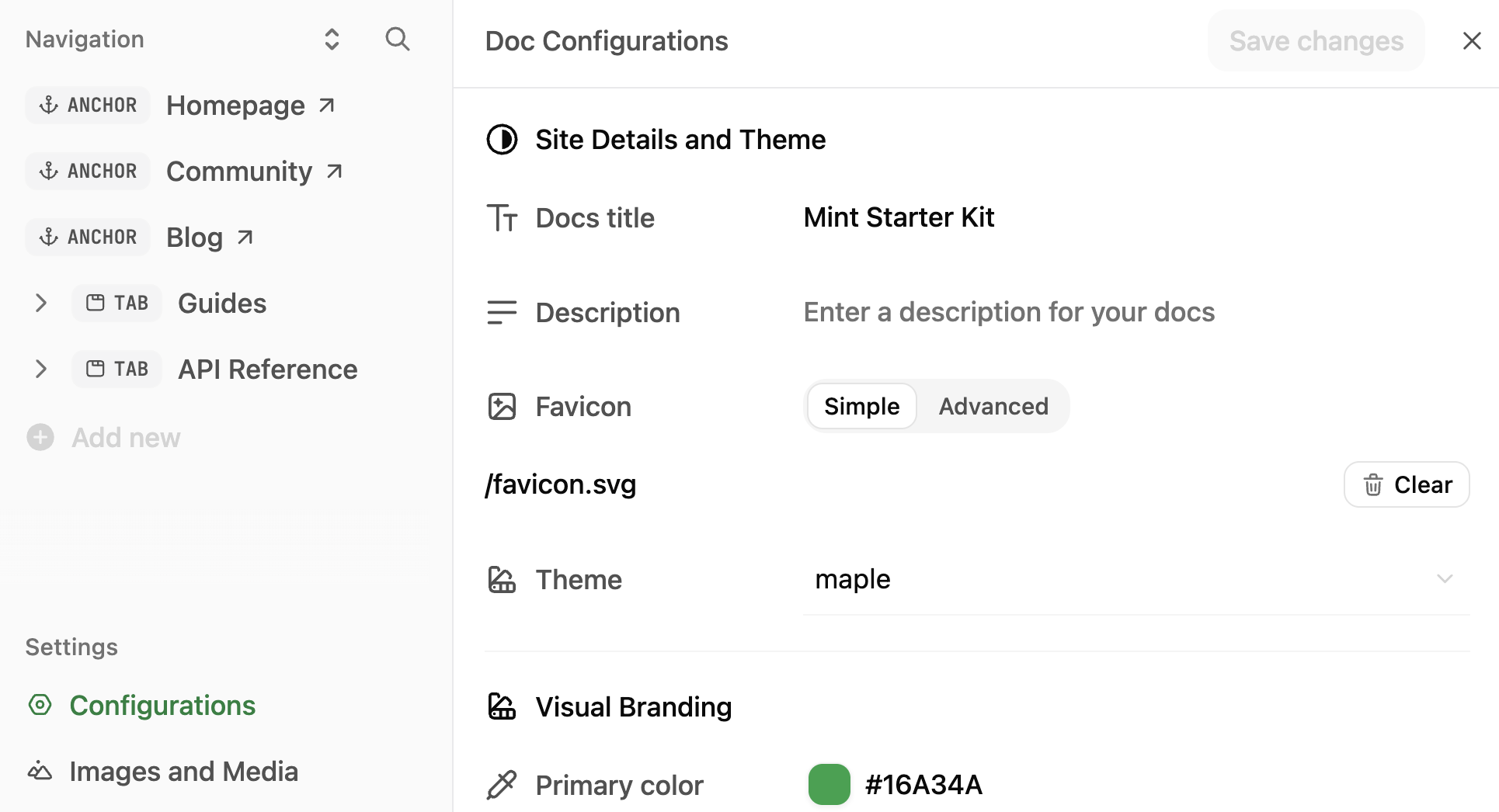
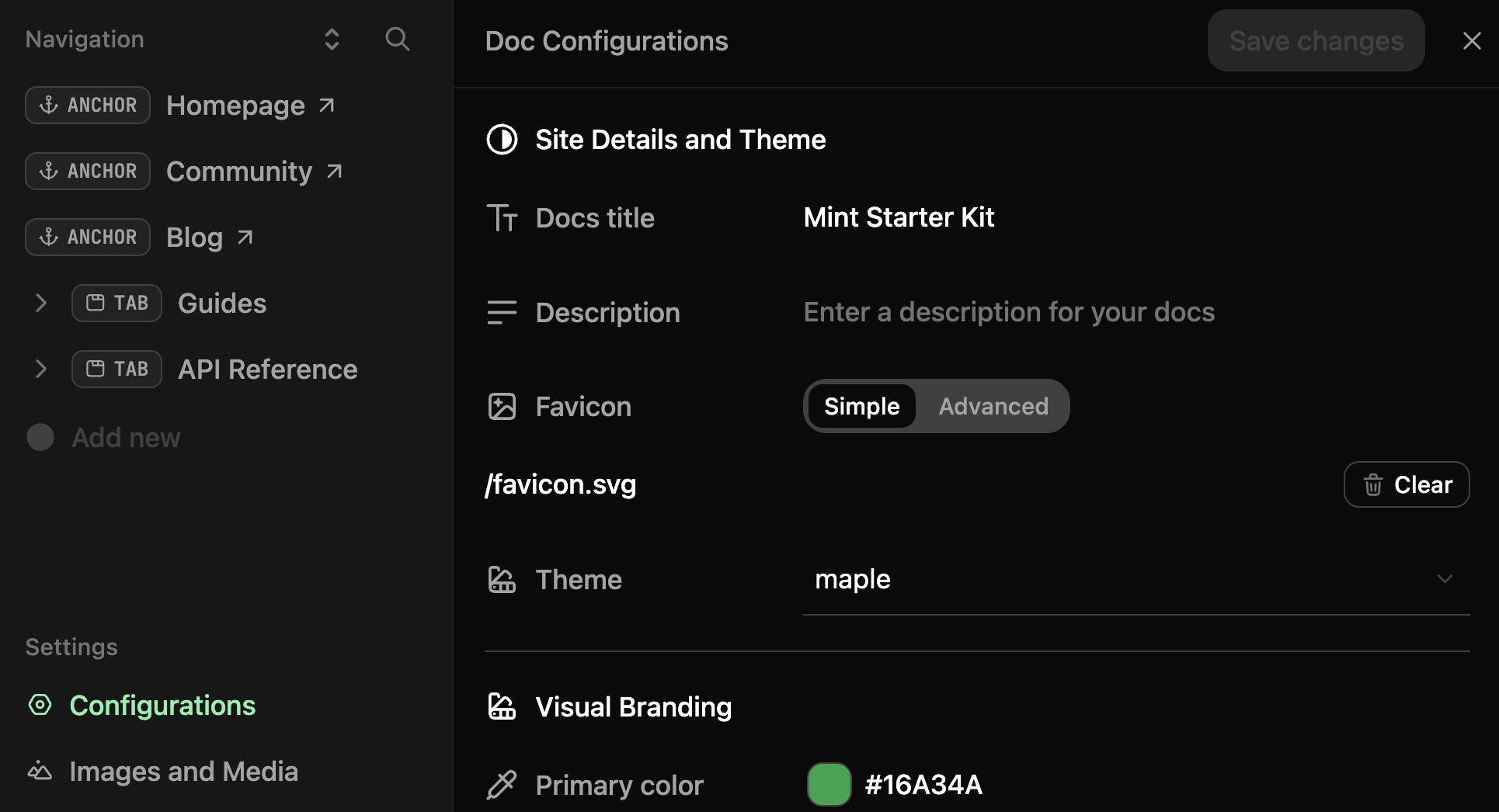
Brand your site
Set your site’s identity and how it appears to visitors.- Docs title: The name of your documentation. Appears in browser tabs and search results.
- Description: Brief summary of your documentation. Used for SEO and site metadata.
- Favicon: Small icon that appears in browser tabs. Upload ICO, PNG, GIF, or JPG files.
- Theme: Choose a theme for your documentation’s overall appearance.
Customize colors and appearance
Control your site’s visual identity and color scheme.- Primary color: The main accent color used throughout your site for links, buttons, and highlights.
- Light mode color: Accent color variation for light mode. How themes apply this varies by theme.
- Dark mode color: Accent color variation for dark mode. How themes apply this varies by theme.
- Logo: Your brand logo. Upload SVG, PNG, or JPG files. You can set different logos for light and dark modes.
- Logo link: Where users go when they click your logo. Typically your homepage or marketing site.
- Background colors: Set custom background colors for light and dark modes separately.
- Background image: Add a background image to your site. Upload PNG, GIF, or JPG files.
- Background decoration: Apply visual styles to your background image.
- Theme toggle: Show or hide the light/dark mode switcher for users.
- Default theme: Set whether your site loads in light or dark mode by default.
Set custom fonts
Replace default fonts with your brand’s typography.- Default font: The base font family and weight for all text. Provide a source URL and format (WOFF or WOFF2).
- Heading font: Font family and weight specifically for headings (h1, h2, etc.). Set separately from body text.
- Body font: Font family and weight for body text and paragraphs.
Configure header
Add navigation elements to the top of your site.- Navbar button: Add a primary call-to-action button in your header. Set the button type, label, and destination URL.
- Navbar links: Add additional navigation links in your header. Each link includes text and a URL.
Configure footer
Add links and social media handles to your site footer.- Social links: Add your profiles on platforms like GitHub, X (Twitter), LinkedIn, Discord, YouTube, Slack, and more.
- Footer columns: Organize footer links into columns with custom headings and link groups.
Enhance content
Customize how content appears on your site.- Thumbnail background: Set a custom background image for page thumbnails and social previews.
- Thumbnail appearance: Control how thumbnails display.
- Thumbnail font: Set a custom font for text in thumbnails.
- Page eyebrow: Add small labels above page titles.
- Code block theme: Choose the syntax highlighting theme for code blocks.
- LaTeX support: Enable mathematical notation rendering with LaTeX.
Set up AI chat and search
Customize the search experience.- Search placeholder: The text that appears in the search box before users type. Default is “Search or ask…”.
Configure API specifications
Link OpenAPI and AsyncAPI specification files to navigation items.- OpenAPI: Select a specification file from your repository or enter a URL to an external OpenAPI file. Choose between file and URL modes using the toggle buttons.
- AsyncAPI: Select a specification file from your repository or enter a URL to an external AsyncAPI file. Choose between file and URL modes using the toggle buttons.
You can only set either OpenAPI or AsyncAPI for a navigation item, not both. Setting one disables the other field.
Add analytics and integrations
Connect analytics and third-party tools to your documentation. Track visitor behavior with:- Amplitude, Mixpanel, Heap: Product analytics platforms
- Google Analytics, Google Tag Manager: Web analytics
- PostHog, Plausible, Fathom: Privacy-focused analytics
- Segment, Hightouch: Customer data platforms
- Hotjar, LogRocket: Session replay and heatmaps
- Microsoft Clarity: User behavior analytics
- Intercom: Customer messaging
- Clearbit, Koala: Visitor identification
- Telemetry: Enable or disable usage telemetry
- Cookies: Set custom cookie key and value pairs